Flameshot 是一款开源跨平台截图工具,截完图不用另开编辑器,直接在选区上画箭头、打码、加文字,还能一键上传分享。界面简洁、快捷键顺手,适合经常写文档、做教程或提交问题反馈的人,Windows、Linux、macOS 都能用。
核心亮点:
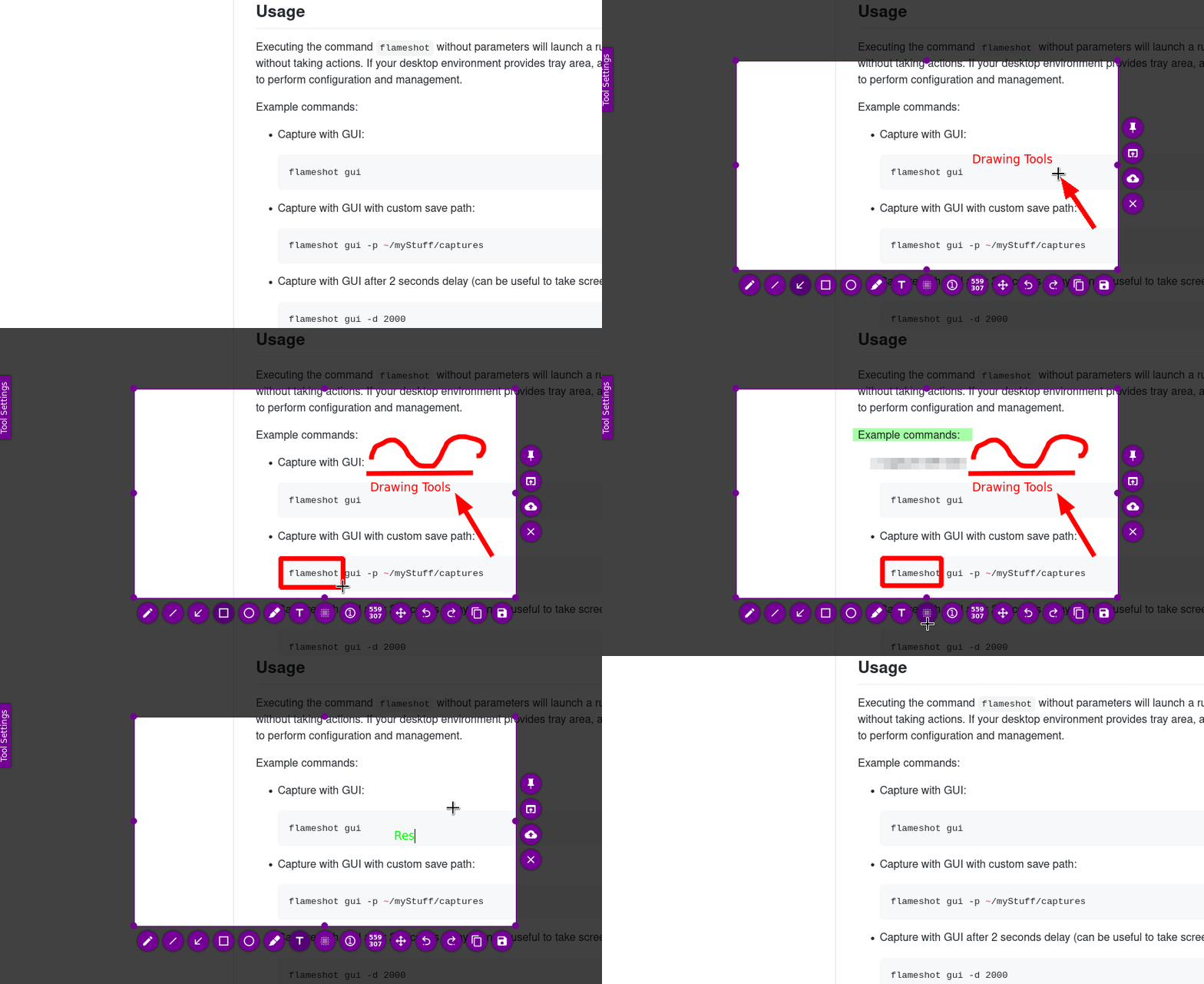
- 截图后直接标注,箭头文字马赛克一应俱全
- 支持区域、全屏、窗口等多种截图方式
- 内置上传与复制分享,省去手动保存步骤
- 开源免费,跨平台运行且可自定义快捷键
当前版本 v14.0.0(2026-06-19 发布),开源协议 GPL-3.0,GitHub 31,389 star。

核心信息
| 软件名称 | Flameshot(flameshot-org/flameshot) |
| 当前版本 | v14.0.0 |
| 更新日期 | 2026-06-19 |
| 开源协议 | GPL-3.0 |
| 软件分类 | Windows 效率工具 |
| 关键词 | capture、cross-platform、free-software、gnu-linux、gui、hacktoberfest |
本次更新内容
- 新版本改为先选择要截取的显示器再截图,多屏和混合缩放环境下操作更清晰可控。
- 新增托盘菜单直接选择屏幕,以及自动截取光标所在屏幕的选项,减少多余操作。
- Windows 支持自定义全局截图快捷键,并可接管系统截图工具的相关设置。
- Linux 新增兼容旧式截图方式的开关,并支持通过脚本或外部程序触发截图。
- Windows 便携模式可将配置保存在程序目录,方便随身携带使用。
查看官方英文更新日志(原文)
# Flameshot v14.0 Release Notes
 This release brings major improvements to multi-monitor support, fractional scaling support, new capture workflows, and a long list of bug fixes across all platforms.

---

##  New Features
### Unified Approach to Multi-Monitor / Scaling
The largest change in this version is when a screenshot is taken, the user will be prompted to select which monitor to capture. Previously on Linux and Windows the capture widget was drawn across all monitors. This presents significant challenges as we diversify the DE's that are supported in linux and mixed scaling becomes more common. After a lot of testing and iteration I decided the best path forward is this solution.

I understand this is a change in workflow, and some may find it cumbersome. However, this will be the path forward for the time being. Please read the following sections as well if you are on X11 or Windows.

Additionally, on Linux the primary way to take a screenshot is using the xdg-desktop-portal calls. This is the only way to screenshot on Wayland, and many X11 DE's also support this. I reccomend looking at this [Arch Wiki page](https://wiki.archlinux.org/title/XDG_Desktop_Portal) to see if your DE supports it.  If not there is a "deprecated" option that can be enabled that will fall back to the legacy method for capturing. (See below)

<img width="999" height="429" alt="image" src="https://github.com/user-attachments/assets/984de630-77a6-4a41-bd4b-87e915a6ec0c" />


### Legacy X11 Screenshot Fallback
For users on minimal window managers (i3, xmonad, etc.) without `xdg-desktop-portal`, there is now a **Settings → General → "Use legacy X11 screenshot method"** option that bypasses the portal. This is marked as deprecated but ensures Flameshot works in more environments.

<img width="603" height="918" alt="image" src="https://github.com/user-attachments/assets/104eb2fb-a1d7-4d52-b7ea-1db7cc419e05" />


### Tray Menu to select screen
If you typically launch flameshot from the tray menu, there is a new dropdown that will directly let you select which monitor to capture and bypass the monitor selection widget.

<img width="475" height="382" alt="image" src="https://github.com/user-attachments/assets/76a43f92-f466-4ea6-9393-369086356db3" />


### Capture Active Monitor (X11 & Windows)
When this is enabled Flameshot will skip the monitor selection dialog entirely and will automatically capture whichever monitor your cursor is on. Enable it in **Settings → General → "Capture active monitor (skip monitor selection)"**.

> ⚠️ Not available on Wayland due to security model limitations.

<img width="603" height="918" alt="image" src="https://github.com/user-attachments/assets/6acd14f9-25e6-4cfb-8f32-6ae46dc49da4" />


### Windows Global Screenshot Shortcut
Flameshot on Windows now supports a global "take screenshot" hotkey, meaning that you can now take screenshots with keybindings other than <kbd>PrntScn</kbd>. It can also detect i
下载地址
以下为官方原包,本站不二次打包;多个文件为不同包型,按需选择其中一个下载即可:
Flameshot-14.0.0-win64.msi(安装版 | 18.1 MB)
flameshot-14.0.0-win64.zip(便携版·解压即用 | 53.0 MB)
flameshot-v14.0+git0.da6121bd-artifact-appimage-x86_64.zip(便携版·解压即用 | 54.8 MB)
flameshot-v14.0+git0.da6121bd-artifact-fedora-41-x86_64.zip(便携版·解压即用 | 772.5 KB)
flameshot-v14.0+git0.da6121bd-artifact-fedora-42-x86_64.zip(便携版·解压即用 | 778.0 KB)
flameshot-v14.0+git0.da6121bd-artifact-flatpak-x86_64.zip(便携版·解压即用 | 1.5 MB)
flameshot-v14.0+git0.da6121bd-artifact-snap-x86_64.zip(便携版·解压即用 | 38.6 MB)
✅ 上方 SHA256 与官方发布值一致,可自行核对。
快速上手
- 运行下载好的安装包,按向导完成安装。
- 首次启动后,在系统托盘找到 Flameshot 图标,右键可进行截图或打开配置。
- 按下截图快捷键(如 Print Screen)或点击托盘图标选择截图模式,拖动鼠标选取区域。
- 在截图编辑界面使用工具栏添加标注、箭头等,然后保存或复制到剪贴板。
提示:可在设置中自定义快捷键和保存路径。
讨论(0 条)