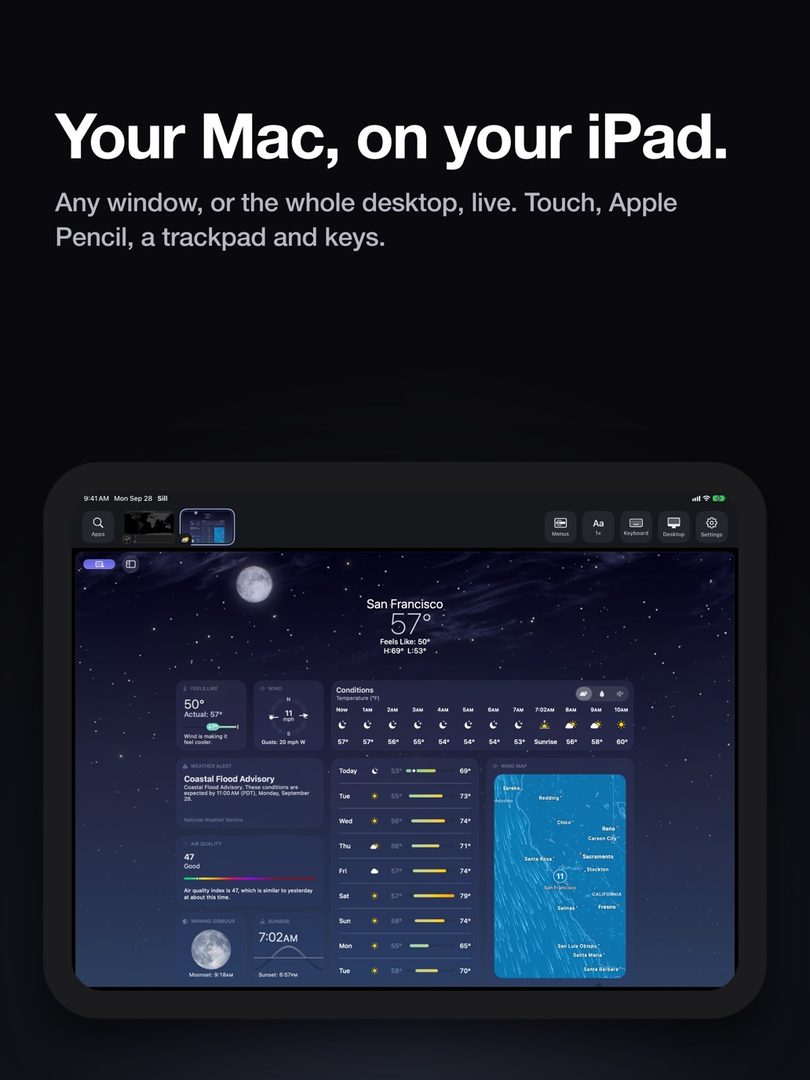
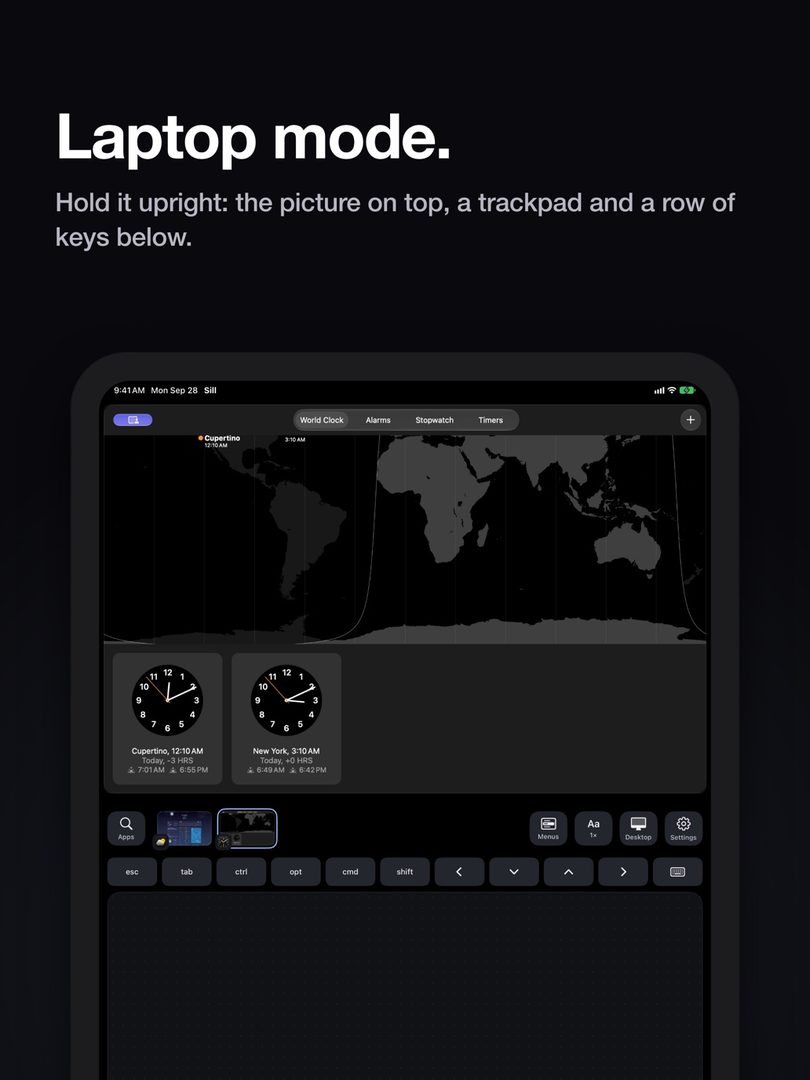
Sill 是一款把 Mac 窗口实时投到 iPhone 或 iPad 的工具,画面用 HEVC 编码传输,延迟低、画质清晰。你可以在手机或平板上用触控、键盘、触控板甚至 Apple Pencil 直接操作 Mac 窗口,点按滑动都会回传到电脑。设备间直连、无需账号和服务器,适合想用 iPad 远程操作 Mac 或把平板当副屏的人。
核心亮点:
- 实时投射单个窗口或整个桌面到 iPhone、iPad
- 支持触控、键盘、触控板与 Apple Pencil 操作
- HEVC 编码传输,画面清晰流畅
- 同网、USB 或直连均可,无账号无服务器
当前版本 v0.6.2(2026-11-16 发布),开源协议 Apache-2.0,GitHub 4,912 star。

核心信息
| 软件名称 | Sill(Saffsanity/sill) |
| 当前版本 | v0.6.2 |
| 更新日期 | 2026-11-16 |
| 开源协议 | Apache-2.0 |
| 软件分类 | macOS 软件 |
| 关键词 | apple-pencil、hevc、ios、ipad、ipados、iphone |
本次更新内容
- 新版本让控制栏可隐藏,全屏看图更清爽,左滑或摇动设备即可恢复显示。
- 画中画功能让离开应用后画面继续播放,方便边看边做其他事。
- 桌面按钮可切换多显示器画面,并显示当前屏幕名称。
- Mac端新增自动更新和夜间构建选项,更新更省心。
- 设置中可查看并复制版本信息,方便反馈问题。
查看官方英文更新日志(原文)
Sill 0.6.2 hides its controls when you want only the picture, keeps your Mac's picture playing in Picture in Picture when you leave the app, and steps the Desktop button through a Mac's screens. Sill for Mac can now update itself. It also shows its version where you can find it, and fixes where a window goes back to on a Mac with more than one screen.

**One version for both apps.** This is Sill for Mac 0.6.2 (1612), and it goes with Sill for iPhone and iPad 0.6.2 (1607), built from the same app code (commit aea3547, which differs from this release's only in words). Sill for iPhone and iPad 0.6.2 reaches the App Store once Apple has reviewed it. Each half works with the other's 0.6.1. Stepping through a Mac's screens needs 0.6.2 on both.

**New for the iPhone and iPad**
- **Full screen.** Settings › Full Screen hides all of Sill's controls, so the Mac's picture gets the screen. Swipe in from the left edge to bring them back, or shake your iPhone or iPad (Shake to Show Controls, on unless you turn it off). While the controls are hidden, a drag that starts at the left edge and goes right brings them back and doesn't reach the Mac (#279, #92, #280).
- **Picture in Picture.** Turn on Picture in Picture in Settings › This iPad (or This iPhone), and the Mac's picture keeps playing in iOS's Picture in Picture window when you leave Sill, with the Mac's sound if Send Audio is on. It is for watching: nothing you tap there reaches the Mac. Off unless you turn it on, and iOS's own Start PiP Automatically must be on (#291).
- **The Desktop button steps through your Mac's screens.** On a Mac with more than one screen, each tap on Desktop shows the next one, the main screen first, and the button says which one is up. Needs Sill for Mac 0.6.2 (#91, #139; built on a pull request by addhumal).
- **The version, where you can find it.** "Sill 0.6.2 (1607)" is at the bottom of the connect screen and at the end of Settings. Touch and hold it to copy it for a bug report.
- **A Mac you reach over a VPN stays reachable** when the VPN was off on the Mac for a while. Sill used to forget the Mac's VPN addresses the first time the Mac listed none; it now keeps them for 90 days.
- **Settings › Quality** shows the quality's name alone, so the row stays on one line on an iPhone on its side. The menu still lists each quality with its rate. (iOS 18 and later.)

**New for the Mac**
- **Sill for Mac updates itself.** When a newer release is out, Settings › General has **Update Now**: it downloads the release from GitHub, checks it two ways (Apple's signature and notarization for Sill's developer, and Sill's own update key), puts it in place of the copy you have and restarts Sill. **Automatically update Sill**, off unless you turn it on, does the same by itself two days after Sill first finds a release, once no device has been connected for 5 minutes. It never disconnects anyone. This starts with the release after this one: 0.6.2 is the first Sill that can update itself, so 0.6.1 an
下载地址
以下为官方原包,本站不二次打包;多个文件为不同包型,按需选择其中一个下载即可:
Sill.dmg(官方原包 | 6.5 MB)
Sill.zip(便携版·解压即用 | 6.5 MB)
✅ 上方 SHA256 与官方发布值一致,可自行核对。
快速上手
- 首次启动 Mac 端 Sill 后,按提示在系统设置中授予屏幕录制与辅助功能权限,并允许本地网络访问。
- 在 iPhone 或 iPad 上打开 Sill,进入“Connect to a Mac”界面,等待同一网络中的 Mac 出现在列表中。
- 在设备上选择你的 Mac 完成配对;若列表中没有,可扫描 Mac 显示的配对码或手动输入。
- 配对后从窗口缩略图栏选择要显示的窗口或整个桌面,即可用触摸、键盘或 Apple Pencil 操作。
- 在设备上的 Sill 设置中调整画质、分辨率与帧率,获得更流畅的远程使用体验。
提示:Mac 与设备不在同一网络时,可开启直连无线或通过 USB 线连接。
讨论(0 条)