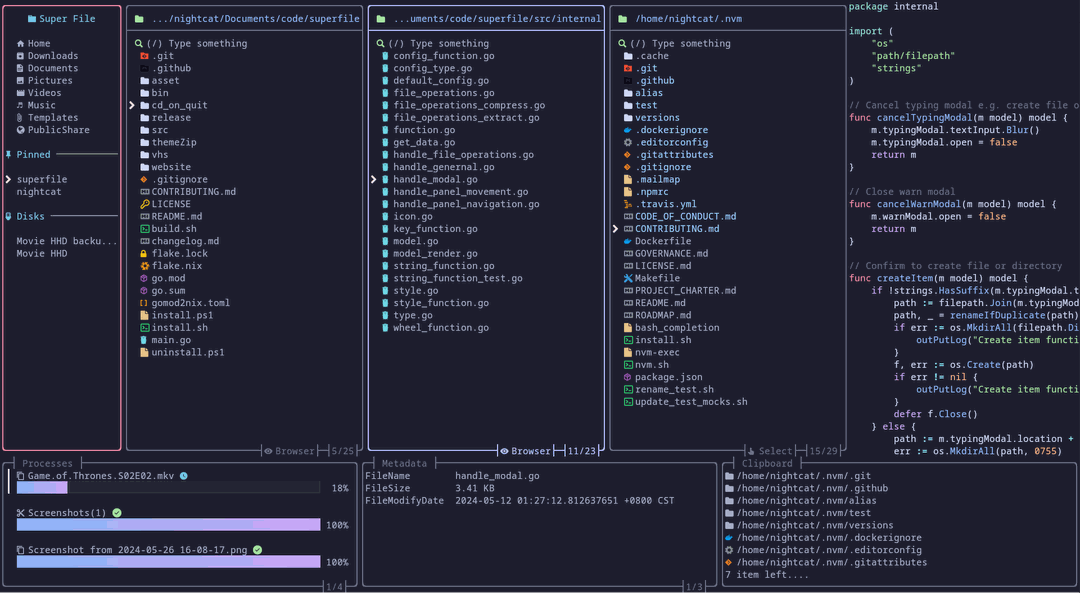
Superfile 是一款跑在终端里的文件管理器,用 Go 编写,界面精致、响应迅速,支持多面板浏览、主题切换和插件扩展。它把图形文件管理器的直观操作带进命令行,适合习惯终端工作流、又想要高效文件操作体验的开发者与运维人员。
核心亮点:
- 终端内多面板文件浏览,操作直观流畅
- 内置主题系统,可自由切换界面外观
- 支持插件扩展,按需增强文件管理能力
- 提供丰富快捷键,常用操作一键完成
当前版本 v1.6.1(2026-11-20 发布),开源协议 MIT,GitHub 24,111 star。


核心信息
| 软件名称 | Superfile(yorukot/superfile) |
| 当前版本 | v1.6.1 |
| 更新日期 | 2026-11-20 |
| 开源协议 | MIT |
| 软件分类 | Windows 效率工具 |
| 关键词 | bubbletea、cli、file-manager、filemanager、filesystem、golang |
本次更新内容
- 新版本支持把文件移入系统回收站,并可在文件选择器中一次勾选多个文件供脚本使用。
- 文件夹列表现在直接显示所含项目数量,查看总大小可切换到元数据面板。
- 修复了复制符号链接、隐藏文件压缩包命名以及部分快捷键作用到错误面板的问题。
- 新增两款主题可选,同时更新了退出时切换目录的脚本配置,需按文档重新加载。
查看官方英文更新日志(原文)
superfile v1.6.1 adds native trash support across Linux, macOS, and Windows, multi-file selection for the file picker, and directory item counts. It also fixes symlink copying, ZIP names for hidden files, and several shortcuts that acted on the wrong panel. ## Install [**How to install superfile**](https://github.com/yorukot/superfile?tab=readme-ov-file#installation) ## Highlights - Press `ctrl+d` to send files to the system trash. On Linux, files on other mounted drives can now use the trash on that drive. Thanks @yorukot and @paczek654321. - Pick several files for a script with `--chooser-file`. Press `v`, mark the items with `enter`, then press `e` to write their paths in panel order. Thanks @Abhirup0. - The size column now shows how many items a folder contains. To see its total size, press `m` to focus the metadata panel. Thanks @booth-w and @VXNCXNX. - Copying a symlink preserves the link, and compressing a dotfile such as `.env` produces `.env.zip`. Thanks @xelavopelk and @toller892. - If you use **cd on quit**, replace the function in your shell profile and reload it. The updated Bash, zsh, fish, and PowerShell functions ask `spf` where it writes the last directory. Thanks @VXNCXNX. [Shell setup](https://superfile.dev/configure/superfile-config/#cd_on_quit) - Try the two new Rosé Pine themes by setting `theme` to `rose-pine-dawn` or `rose-pine-moon`. Thanks @MJLiiii. <details><summary>Theme screenshots</summary> 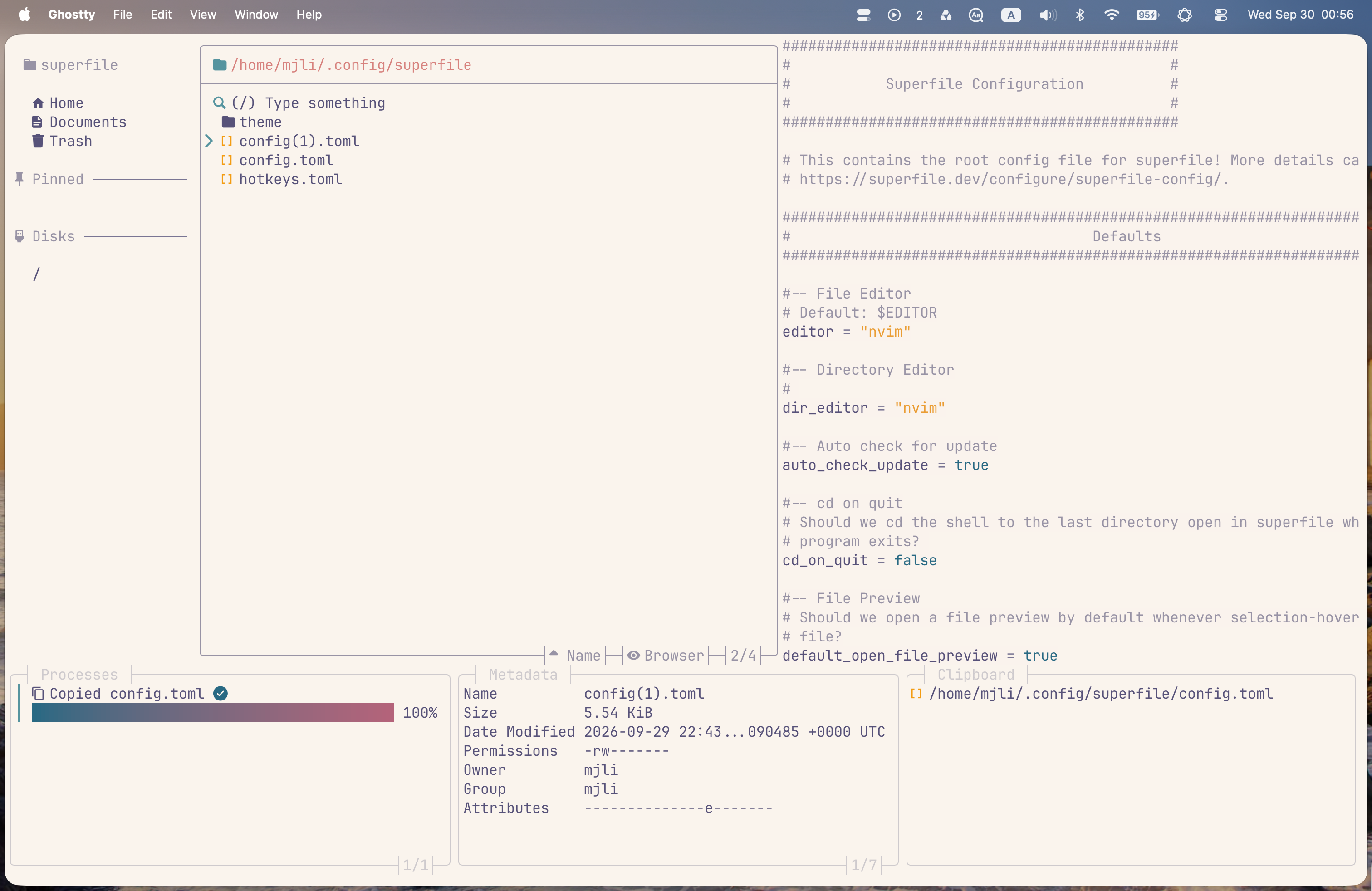 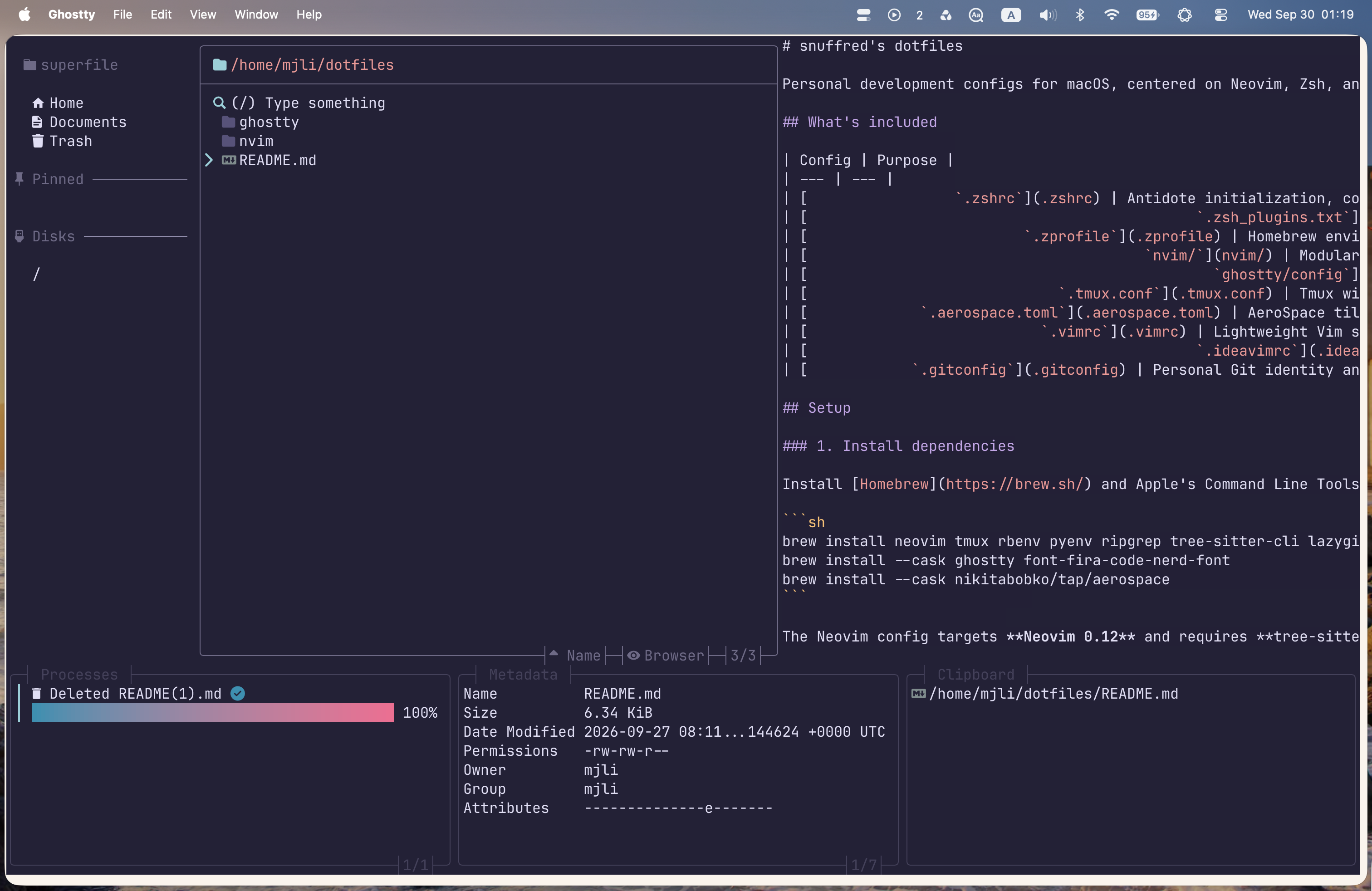 </details> ## New Contributors * @nenas1ya made their first contribution in https://github.com/yorukot/superfile/pull/1442 * @clausecker made their first contribution in https://github.com/yorukot/superfile/pull/1472 * @dragosgatan made their first contribution in https://github.com/yorukot/superfile/pull/1467 * @paczek654321 made their first contribution in https://github.com/yorukot/superfile/pull/1490 * @KristianHolme made their first contribution in https://github.com/yorukot/superfile/pull/1503 * @prajwalmahajan101 made their first contribution in https://github.com/yorukot/superfile/pull/1509 * @ikan31 made their first contribution in https://github.com/yorukot/superfile/pull/1529 * @Jaredy899 made their first contribution in https://github.com/yorukot/superfile/pull/1523 * @earfman made their first contribution in https://github.com/yorukot/superfile/pull/1552 * @matsuyamaru made their first contribution in https://github.com/yorukot/superfile/pull/1603 * @Ian-q made their first contribution in https://github.com/yorukot/superfile/pull/1600 * @VXNCXNX made their first contribution in https://github.com/yorukot/superfile/pull/1630 * @Abhirup0 made their first contribution
下载地址
以下为官方原包,本站不二次打包;多个文件为不同包型,按需选择其中一个下载即可:
superfile-windows-v1.6.1-amd64.zip(便携版·解压即用 | 14.0 MB)
superfile-windows-v1.6.1-arm64.zip(便携版·解压即用 | 12.8 MB)
✅ 上方 SHA256 与官方发布值一致,可自行核对。
快速上手
- 解压下载好的压缩包,把其中的可执行文件放到自己方便找到的目录
- 把该文件所在目录加入系统环境变量 PATH,方便在任意位置启动
- 打开终端,输入启动命令 spf 并回车,进入文件管理界面
- 用方向键在文件列表中移动,按回车进入目录或打开文件
- 按快捷键执行复制、移动、删除等常用操作,完成日常文件管理
提示:首次使用可先按快捷键查看帮助,熟悉常用操作。
讨论(0 条)